How to clone your voice in HeyGen and ElevenLabs: in HeyGen you upload a recording and save one of three variants, and in ElevenLabs you create an Instant Voice Clone from the same recording. With my 2:13-minute recording, the clone was ready after about 22 seconds in HeyGen and about 11 seconds in ElevenLabs. Below you'll find every step with screenshots from my recording of October 11, 2026, and the video.
The chapters jump to the matching step of the guide.
Recorded on October 11, 2026, on the Creator plan. The interface can change; the steps match what it looked like that day.
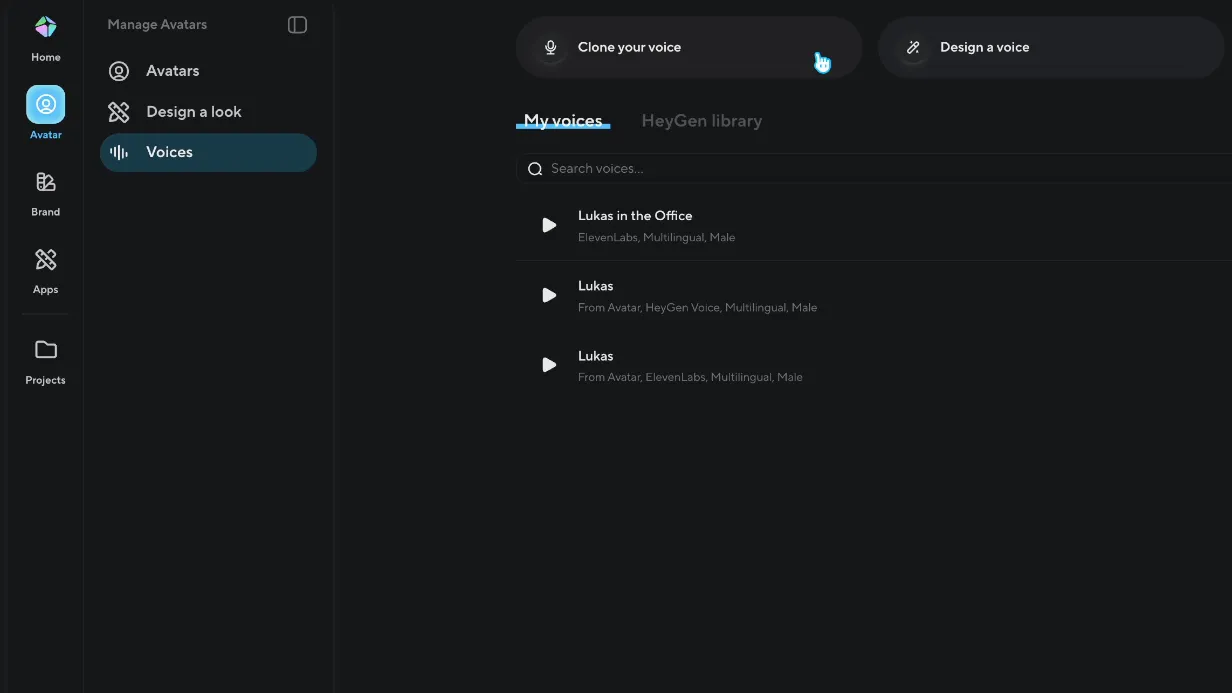
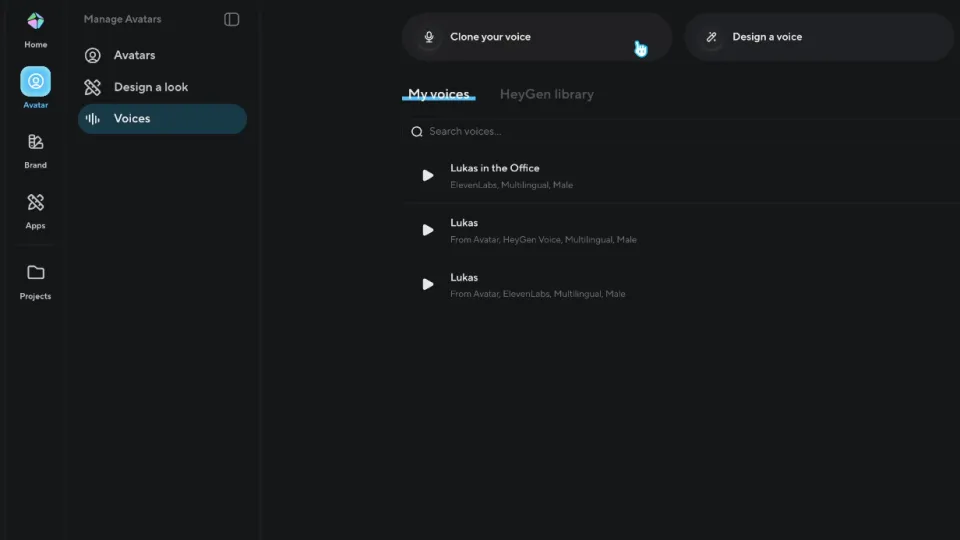
In HeyGen, click Avatar in the left bar, then Voices. Your existing voices are listed under My voices. At the top, click Clone your voice.
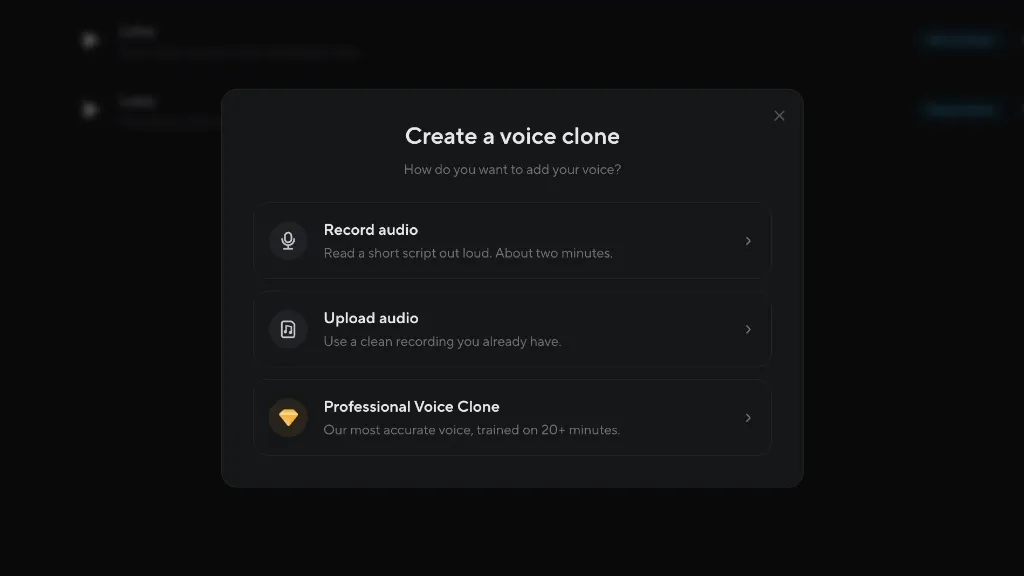
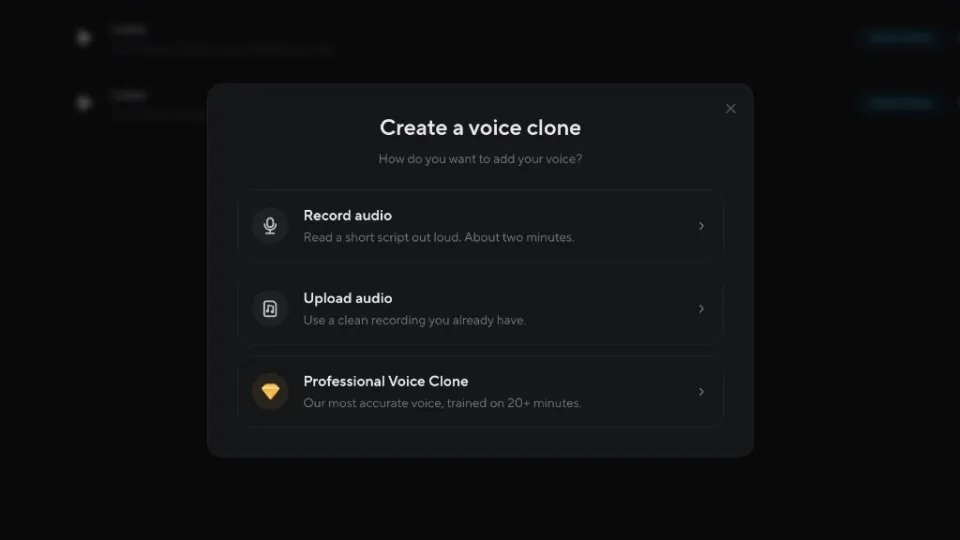
The dialog offers three ways: Record audio (read a short script out loud, about two minutes), Upload audio (a clean recording you already have) and Professional Voice Clone (trained on 20+ minutes, according to the dialog). I had a recording prepared, so I chose Upload audio.
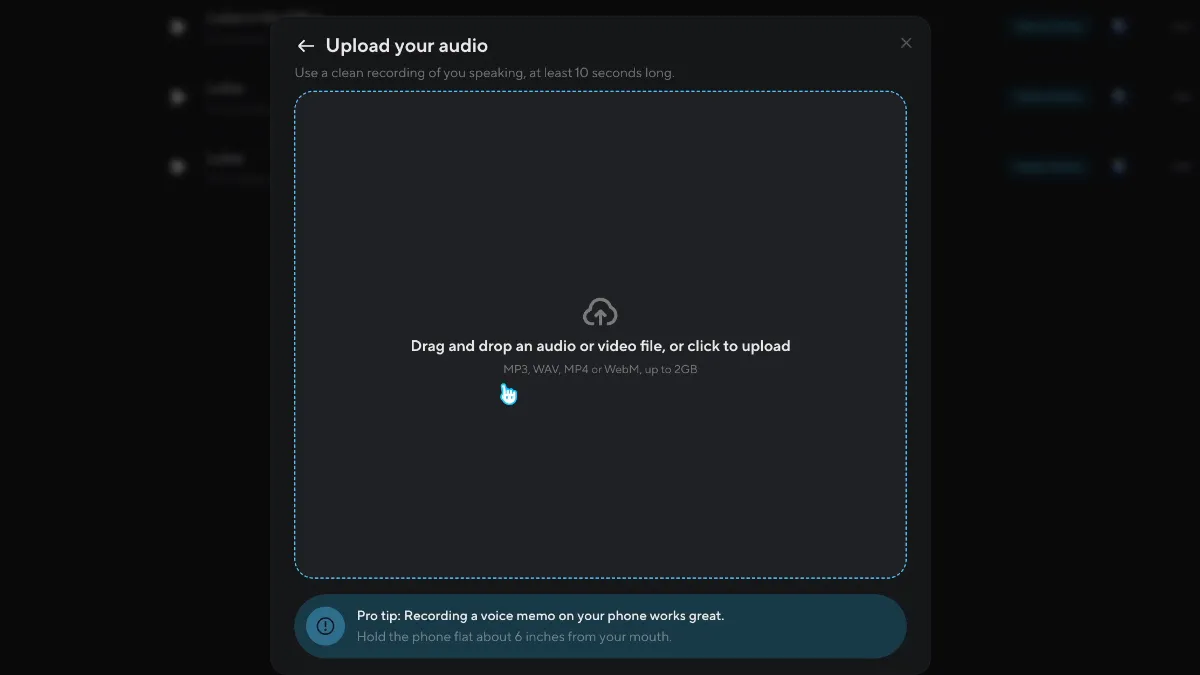
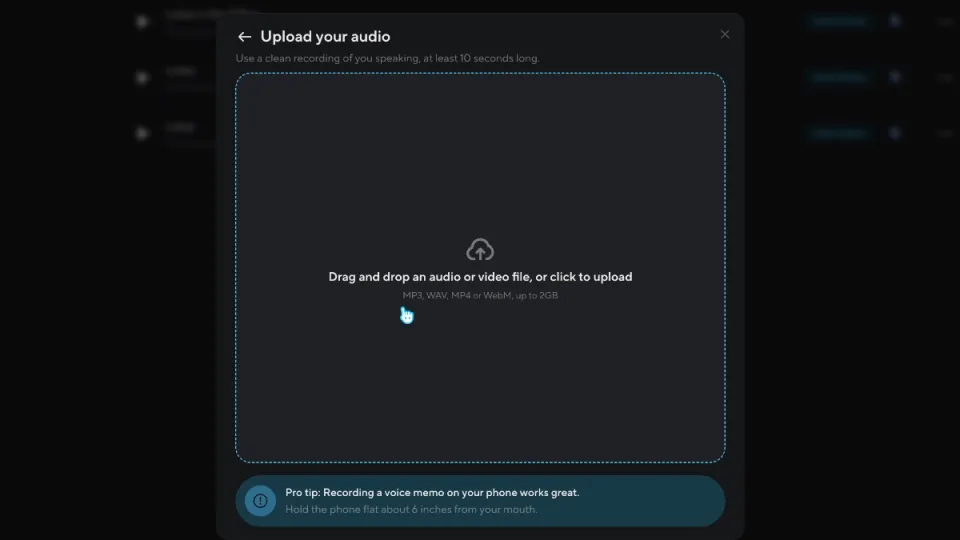
Drag the file into the box or click to upload. HeyGen asks for a clean recording of you speaking, at least 10 seconds long, and accepts MP3, WAV, MP4 or WebM up to 2 GB. My file was R2.wav: 2:13 minutes of me just talking, recorded with a Shure SM7B through a Scarlett 2i2 and via USB-C into my MacBook Pro.
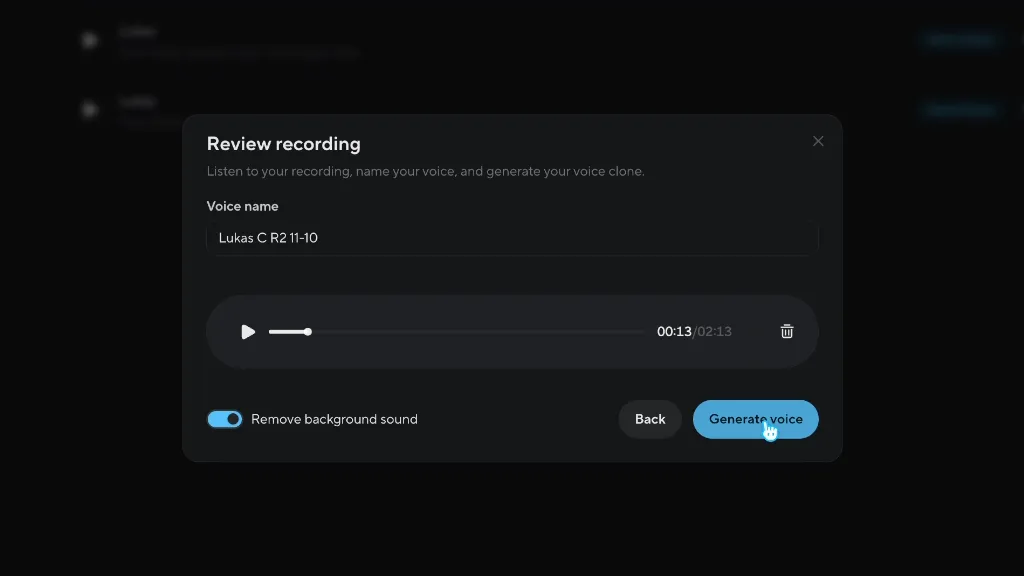
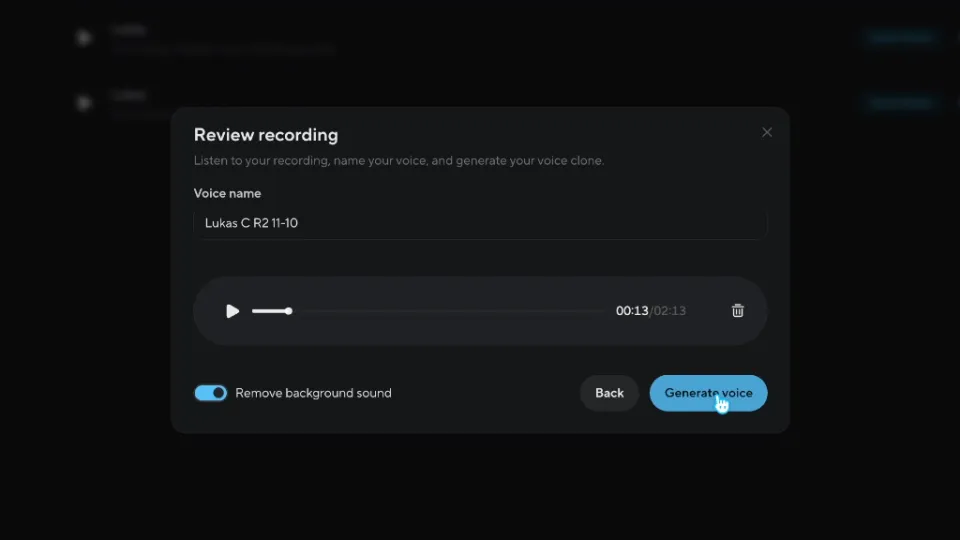
Give the voice a name you'll recognize later; I used “Lukas C R2 11-10”. Play the recording once to make sure it's the right file. Remove background sound was on by default, and I left it on. Then click Generate voice.
HeyGen shows “Creating your voice clone” and asks you not to close or refresh the window in the meantime. My clone was ready after about 22 seconds.
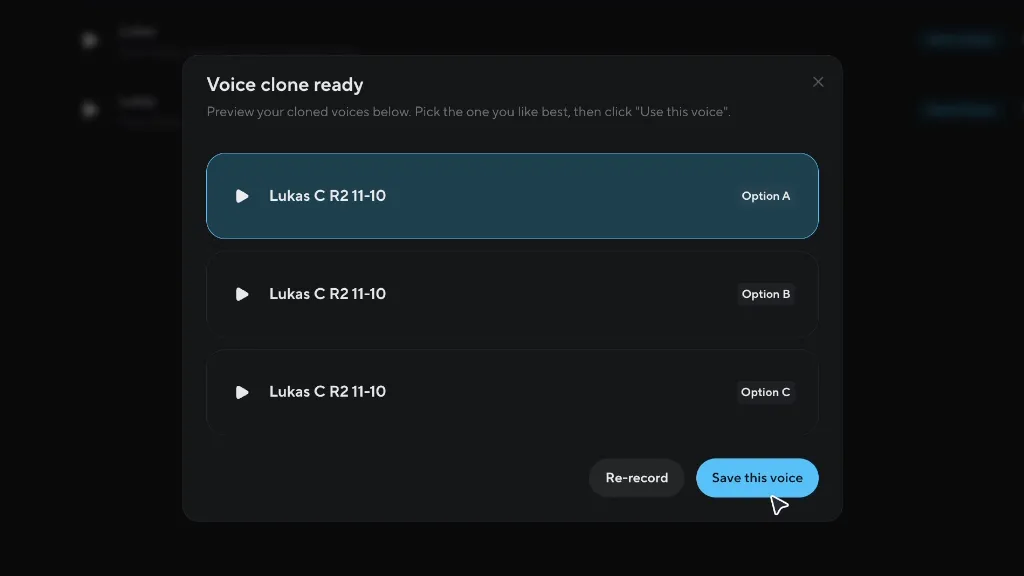
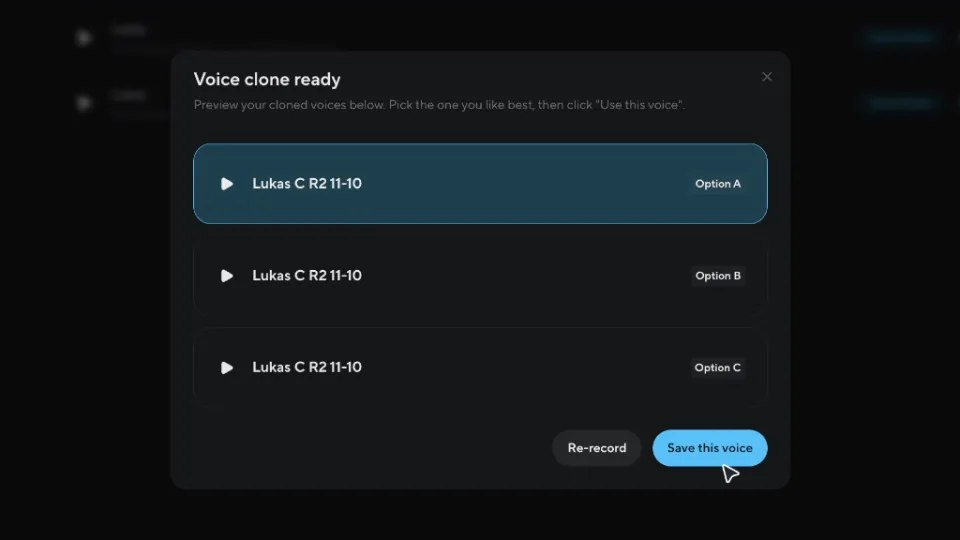
HeyGen creates three variants from the same recording: Option A, B and C. All three read the same preview text, written by HeyGen, so you only compare the voice. Listen to each and pick the one closest to your voice. I went with A and clicked Save this voice.
Afterwards HeyGen asks “How does this voice sound?”. You can answer or click Skip.
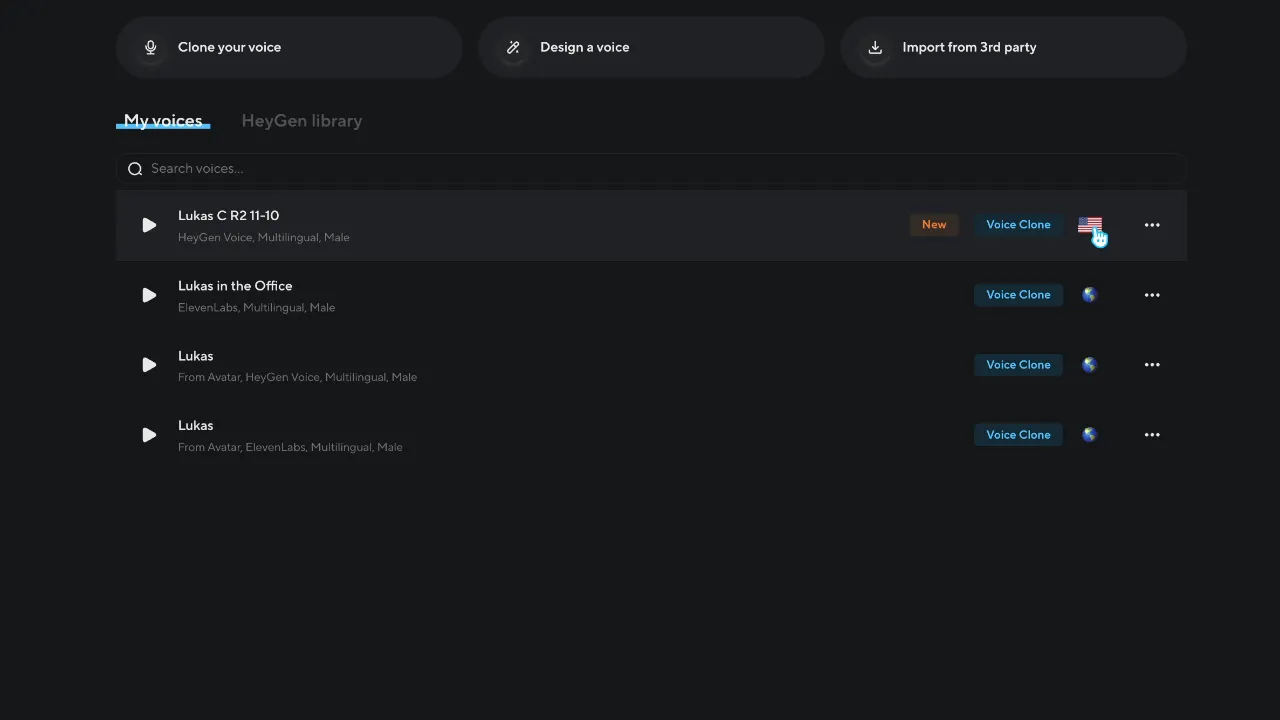
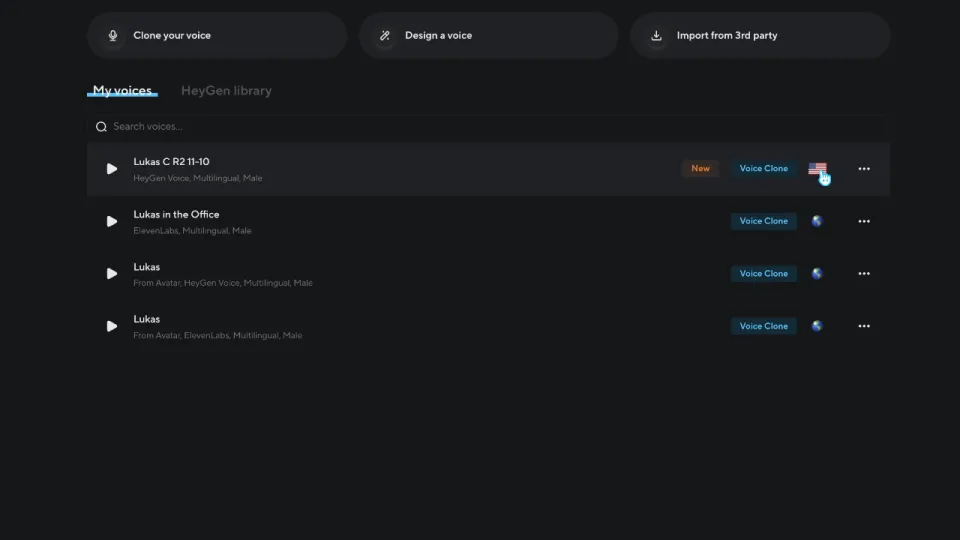
The new clone now sits at the top of My voices, marked New. Mine is listed as “HeyGen Voice, Multilingual, Male”. HeyGen Voice is the engine, HeyGen's own voice model. The flag icon in the row shows the language, English in my case; clicking it opens the engine options.
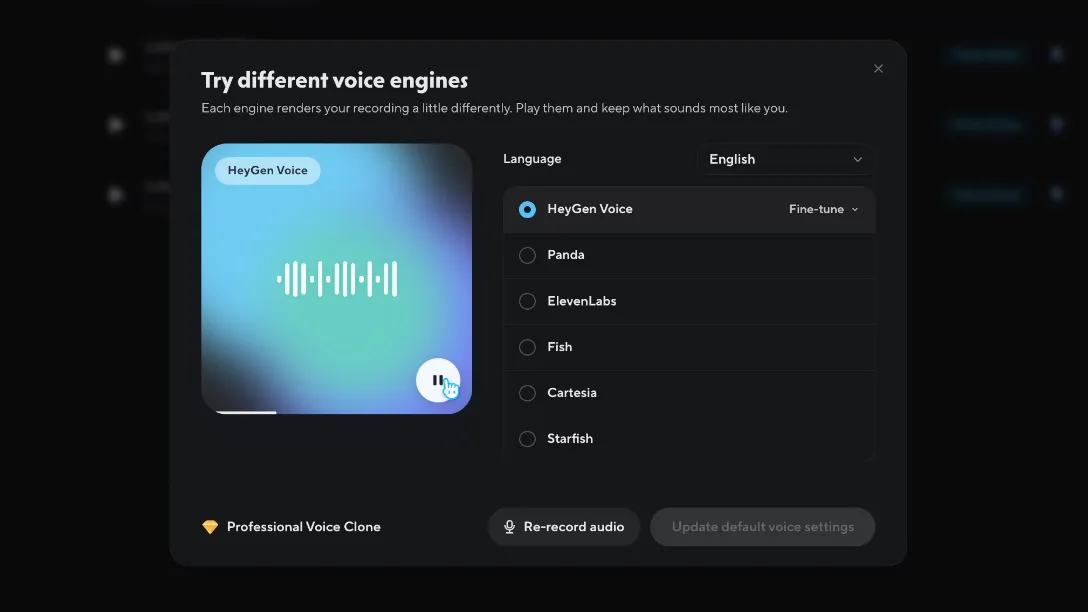
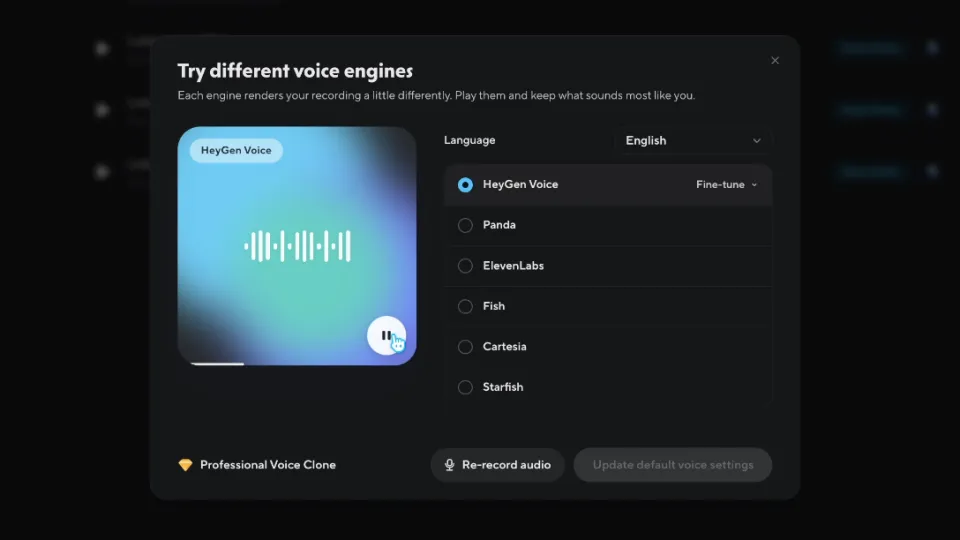
In Try different voice engines, HeyGen renders your recording with different engines; you play them and keep what sounds most like you. The default was HeyGen Voice, and the list also offered Panda, ElevenLabs, Fish, Cartesia and Starfish. I compared Panda, which took a while to render, about 27 seconds for me. Then I switched back to HeyGen Voice.
Update default voice settings only becomes active once you select a different engine. I kept HeyGen Voice, and with that the voice is set up in HeyGen.
Same recording, same day. Instant voice cloning starts with the Starter plan.
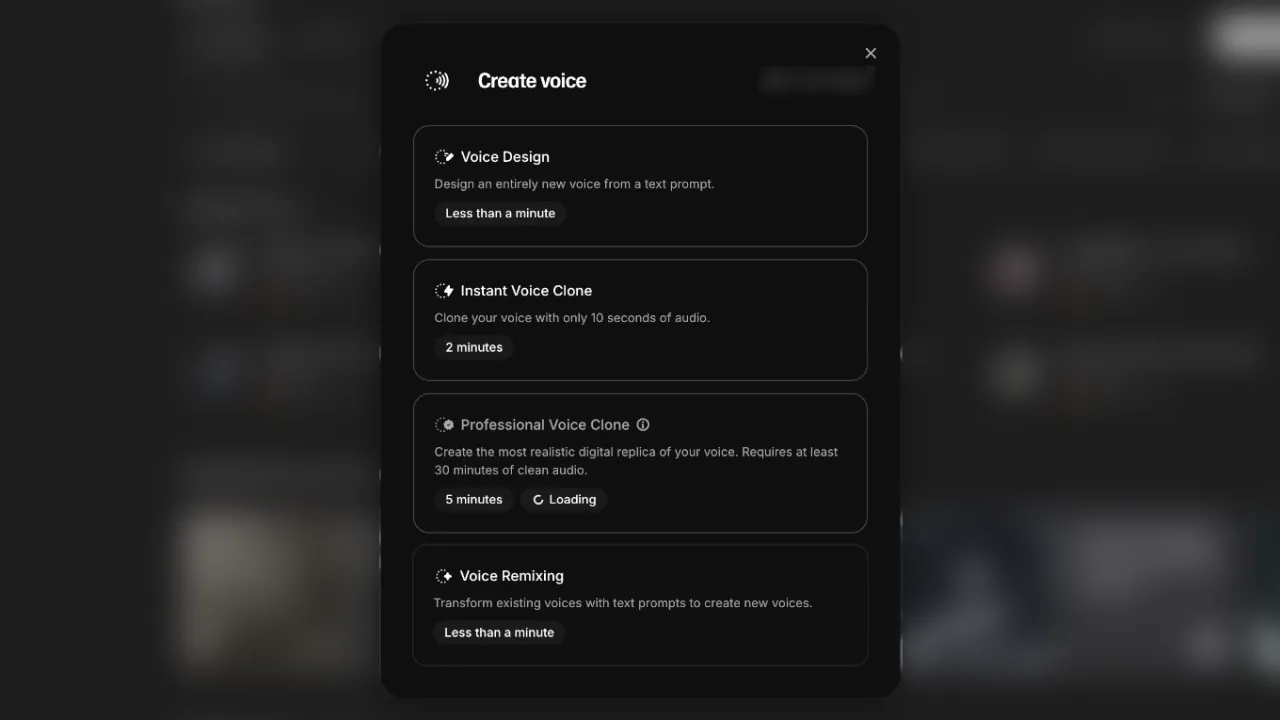
In ElevenLabs, click Voices in the left sidebar, then + Create Voice at the top right. In the dialog, choose Instant Voice Clone (“Clone your voice with only 10 seconds of audio”). The Professional Voice Clone below it needs at least 30 minutes of clean audio, according to the same dialog.

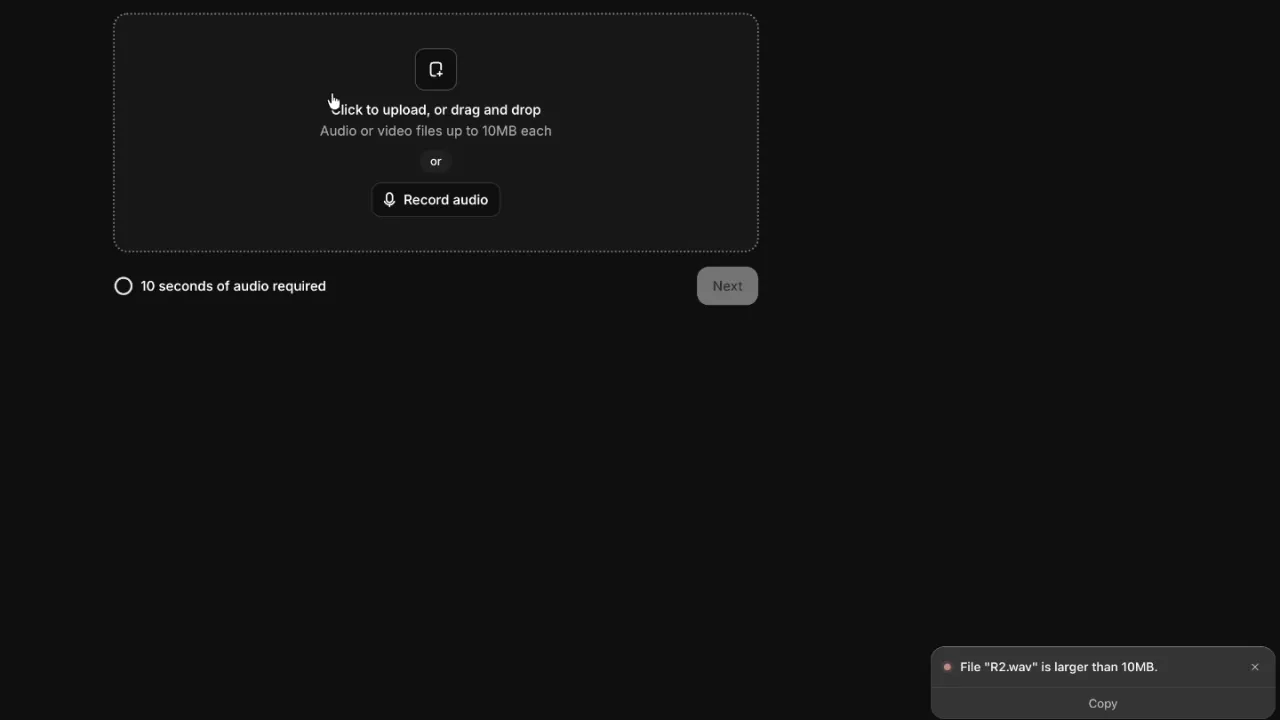
Click the box or drag your file in. The page accepts “Audio or video files up to 10MB each” and needs at least 10 seconds of audio. My two-minute WAV file was too big: “File "R2.wav" is larger than 10MB.” It had 17.6 MB.

The fix is the same recording as an MP3. I had Claude Code convert my WAV file into an MP3 at 320 kbps in the meantime: 5.3 MB, same length. Any audio editor that exports MP3 can do this too, or ffmpeg: ffmpeg -i R2.wav -b:a 320k R2.mp3. ElevenLabs' docs advise MP3 at 128 kbps or more (192 kbps or more in their FAQ).
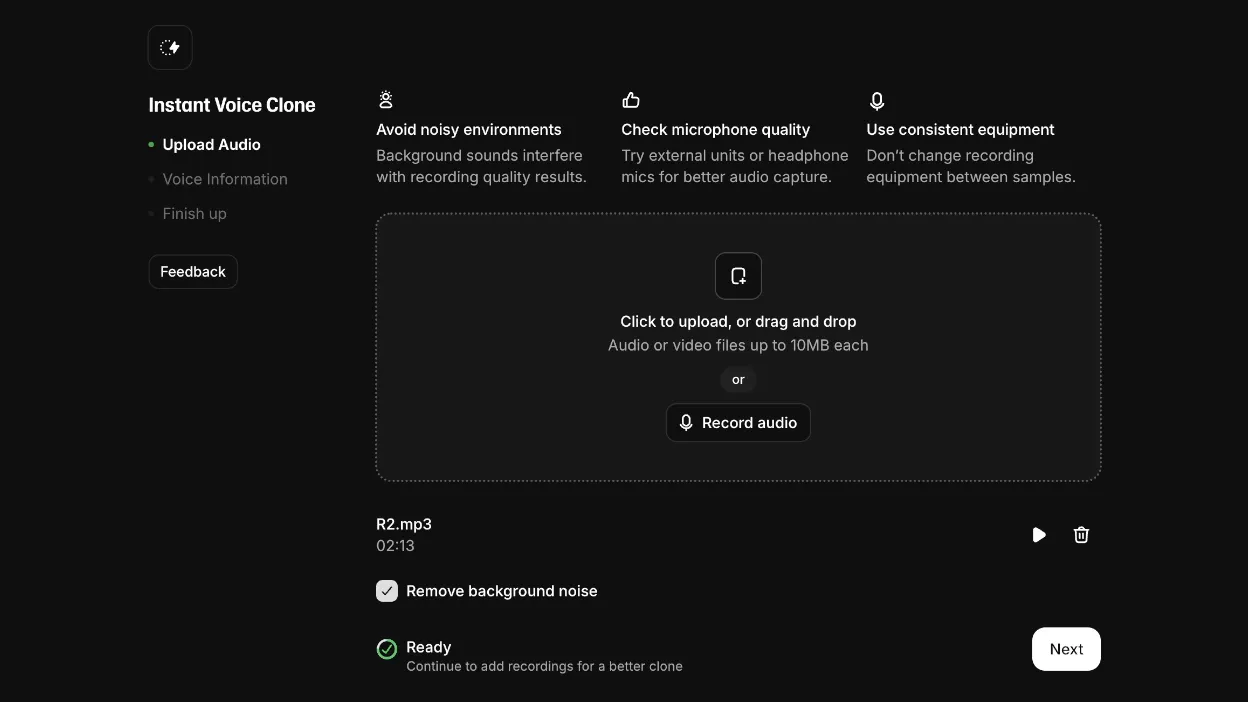
After the upload, ElevenLabs shows the file with its length and Ready. Remove background noise was ticked by default; I left it on and clicked Next.

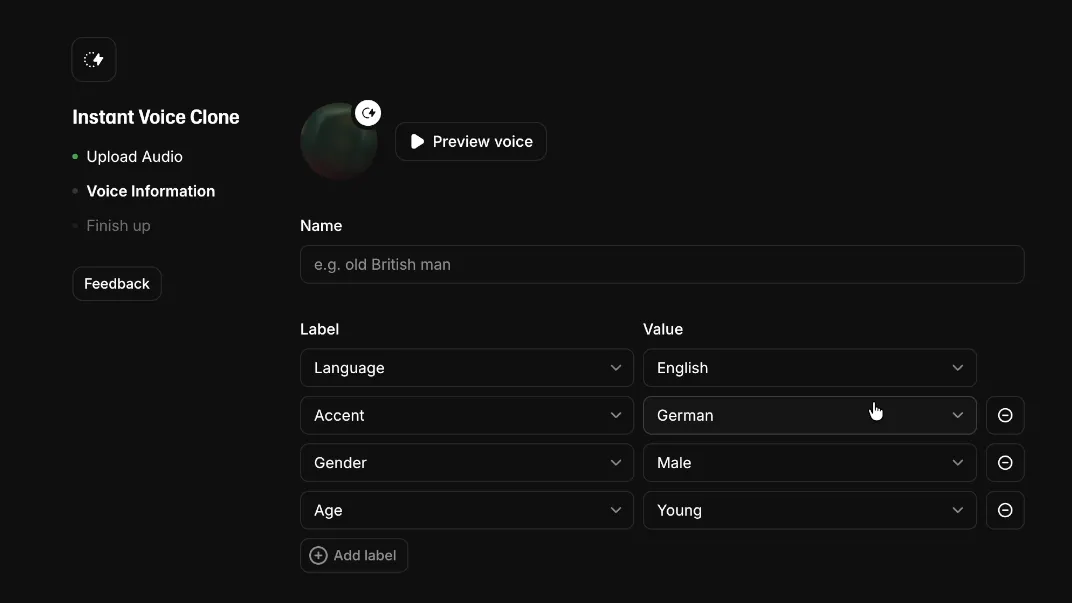
About 11 seconds after I clicked Next, the clone was ready and the Voice Information page opened. Click Preview voice to hear it; ElevenLabs picks the sample sentence. Below, labels describe the voice: language, accent, gender and age. Mine were already filled in (English, German accent, male, young). I briefly tried American and Middle Aged, then kept German and Young.

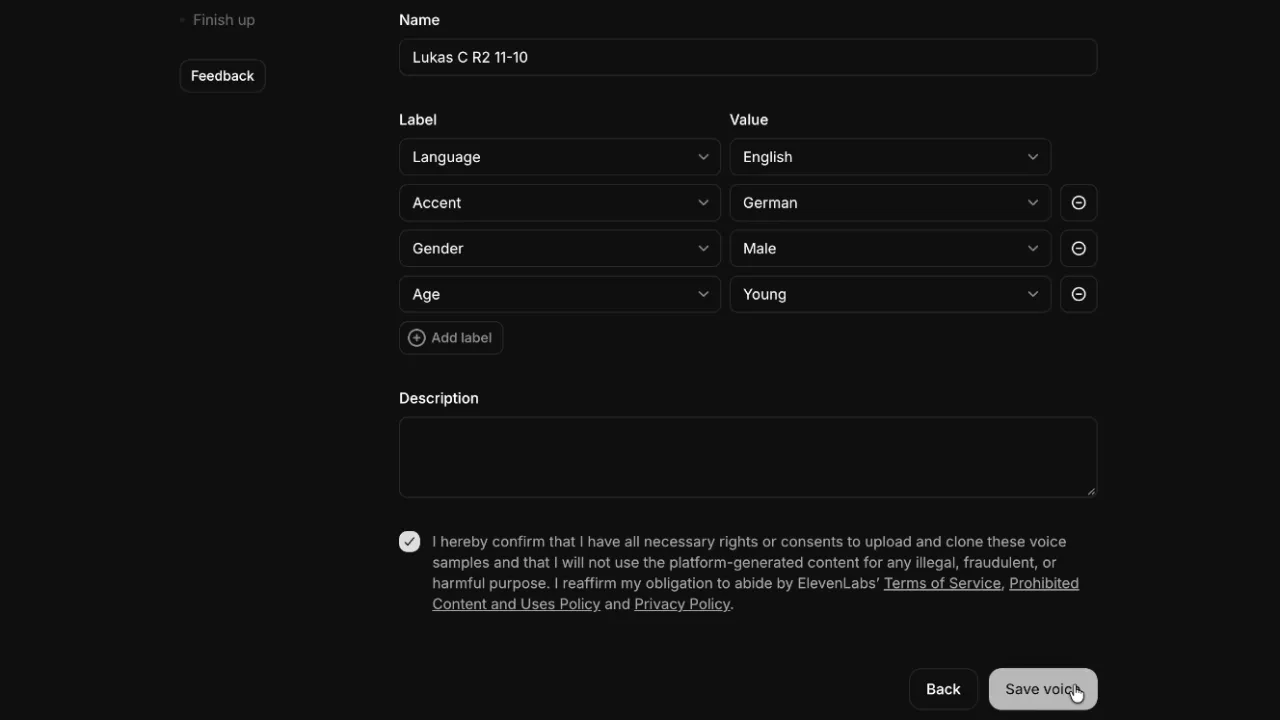
Enter a name; I used the same one as in HeyGen. Then tick the checkbox: with it you confirm that you have all necessary rights or consents to upload and clone these voice samples. Only clone your own voice or one you're allowed to clone. It's my own voice, so I ticked it and clicked Save voice.

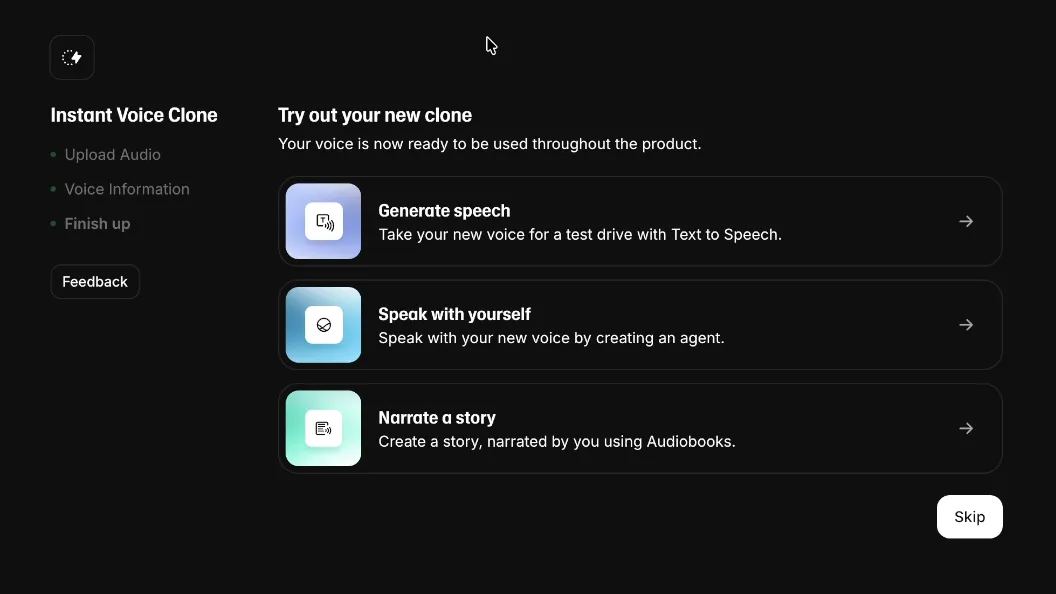
The last page says your voice is now ready to be used throughout ElevenLabs and offers three ways to try it: Generate speech (Text to Speech), Speak with yourself (an agent with your voice) and Narrate a story (Audiobooks). You can also click Skip. With the instant clone, this was super fast for me.

Two voice clones from the same recording in just a few minutes. Which one sounds more like me? That's what the blind test is for: both clones against my real voice, four rounds in English and a bonus round in German, loudness-matched and with first takes only: HeyGen vs ElevenLabs voice cloning blind test. Make your own guess before you read the result. It was really, really close.
Next, I'm testing ElevenLabs version 4: can an instant clone from just 10 seconds of audio beat my professional clone? I did this test back in July with v2: ElevenLabs Part 1.
Click Voices, then “+ Create Voice”, and choose “Instant Voice Clone”. Upload a recording (10 MB per file at most, at least 10 seconds of audio), leave “Remove background noise” on and click Next. On the next page, preview the voice, check the labels (language, accent, gender, age), enter a name, confirm the rights to the voice and click “Save voice”. Instant cloning starts with the Starter plan, regular price $6 a month (as of October 13, 2026). In my test the clone was ready about 11 seconds after clicking Next.
Open Avatar → Voices, click “Clone your voice” and choose “Upload audio” (or “Record audio”). Upload the file, name the voice and click “Generate voice”; “Remove background sound” is on by default. HeyGen then creates three variants, A, B and C. Pick the one closest to your voice and click “Save this voice”. The clone then appears under My voices, and the flag icon lets you compare other engines. I used the Creator plan ($29 a month, as of October 13, 2026). My clone was ready after about 22 seconds.
For an instant clone, about one to three minutes of clean speech. HeyGen's upload dialog asked for at least 10 seconds on October 11, 2026, its help center says at least 30 seconds, and its API docs call 1 to 3 minutes ideal and only use the first 3 minutes. ElevenLabs' upload page needs 10 seconds, but its docs recommend about 1 to 2 minutes, at least 1 minute and no more than 3. I used the same 2:13-minute recording for both tools. A professional clone needs far more: HeyGen's dialog says 20+ minutes, ElevenLabs' dialog at least 30 minutes of clean audio.
The cloning itself took less than half a minute in my test on October 11, 2026: about 22 seconds in HeyGen after clicking “Generate voice”, about 11 seconds in ElevenLabs after clicking Next. Add the time for the recording (mine was 2:13 minutes of free speech) and a few minutes for the dialogs. If you compare other engines in HeyGen, each one has to render first; Panda took about 27 seconds for me.
As of October 13, 2026: in ElevenLabs, instant voice cloning starts with the Starter plan at a regular $6 a month, professional cloning with Creator at $22 a month. HeyGen's pricing page lists one voice clone in the free plan; the Creator plan costs $29 a month billed monthly and $24 billed annually. I recorded this tutorial on HeyGen's Creator plan. Prices change, so check both pricing pages for the current state.
Because the instant clone accepts audio or video files up to 10 MB each, and uncompressed WAV files grow fast: my 2:13-minute WAV (mono, 24-bit, 44.1 kHz) had 17.6 MB. The fix is the same recording as an MP3: at 320 kbps it had 5.3 MB and uploaded fine. ElevenLabs' docs advise MP3 at 128 kbps or more (192 kbps or more in their FAQ), so 320 kbps is well above that. HeyGen took the WAV directly; its upload dialog accepts files up to 2 GB.
What the dialogs say (limits, notes, labels) comes from my screen recording of October 11, 2026, and is visible in the screenshots. Everything else comes from the providers' official pages:
I work 1:1 with freelancers, consultants, coaches and small teams on practical AI workflows, automation and custom tools. The intro call is free and takes 15 minutes.
Book a free strategy call